
Integrate into your iOS app
Register an SDK Key
Annotate images with range of motion angles and highlight specific joints.
Installing the SDK
Manager
Step 1: Click on Xcode project file Step 2: Click on Swift Packages and click on the plus to add a package Step 3: Enter the following repository url https://github.com and click next Step 4: Choose all modules and click add package.| Module | Description |
|---|---|
| FloworgCore | Core SDK (required) |
| FloworgMP | Mediapipe Library with all models (one FloworgMP variant is required) |
| FloworgMP-lite | Mediapipe Lite Library |
| FloworgMP-full | Mediapipe Full Library |
| FloworgMP-heavy | Mediapipe Heavy Library |
| FloworgCamera | Utility Class for Integration (optional, recommended) |
| FloworgSwiftUI | Utility Classes for SwiftUI Integration (optional, recommended) |
CocoaPods
Step 1: Open your project's Podfile Step 2: Add your pod file dependencies:
  pod 'FloworgCore', :git => 'https://github.com/floworg/floworg-ios-sdk.git'
  pod 'FloworgCamera', :git => 'https://github.com/floworg/floworg-ios-sdk.git'
  pod 'FloworgSwiftUI', :git => 'https://github.com/floworg/floworg-ios-sdk.git'
| Module | Description |
|---|---|
| FloworgCore | Includes Core SDK and Mediapipe Library (required) |
| FloworgCamera | Utility Class for Integration (optional, recommended) |
| FloworgsSwiftUI | Utility Classes for SwiftUI Integration (optional, recommended) |
Add Camera Permission
Apple requires app's using the camera to provide a reason when prompting the user, and will not allow camera access without this set.
Privacy - Camera Usage Description | "We use your camera to <USE CASE>"
Add this to your app's info.plist or if a newer project under 'Info' tab on your project settings:
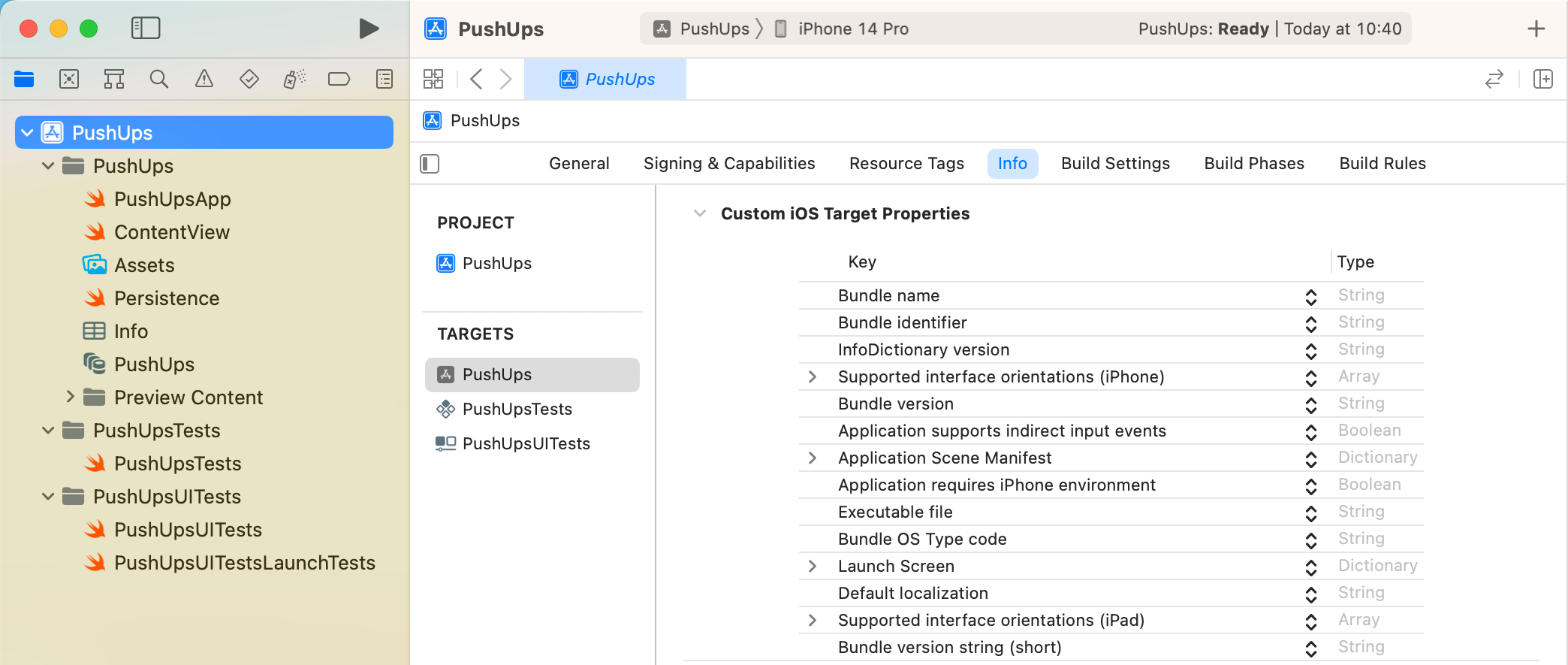
Add Camera Permissions Check To Main App
Next, you have to explicitly request access to the camera, which will provide the Apple standard camera permission prompt. This is only a demo implementation, as you'd typically want to give the user an idea of what your app does first and why camera permissions help them.
import SwiftUI
import AVFoundation

@main
struct DemoApp: App {
    var body: some Scene {
        WindowGroup {
            DemoAppView()
        }
    }
}
struct DemoAppView: View {
    @State var cameraPermissionGranted = false
    var body: some View {
        GeometryReader { geometry in
            if cameraPermissionGranted {
                FloworgBasicView()
            }
        }.onAppear {
            AVCaptureDevice.requestAccess(for: .video) { accessGranted in
                DispatchQueue.main.async {
                    self.cameraPermissionGranted = accessGranted
                }
            }
        }
    }
}
Attach SDK to Views
This is our standard boilerplate implentation providing:- A fullscreen camera display.
- An overlay showing the AI user's landmarks.
- Minimal reloading of SwiftUI view's for high performance
- Orientation changes for Portrait or Landscape.
- Sensible memory releasing when the view is no longer visible.
import SwiftUI
import FloworgCore
import FloworgCoreSwiftUI

struct FloworgCoreBasicView: View {
    private var floworg = Floworg(sdkKey: "YOUR SDK KEY HERE") // register for your free key at https://flow.org.es/contact-us
    @State private var overlayImage: UIImage?
    var body: some View {
        GeometryReader { geometry in
            ZStack(alignment: .top) {
                FloworgCameraView(useFrontCamera: true, delegate: floworg)
                FloworgOverlayView(overlayImage: $overlayImage)
            }
            .frame(width: geometry.safeAreaInsets.leading + geometry.size.width + geometry.safeAreaInsets.trailing)
            .edgesIgnoringSafeArea(.all)
            .onAppear {
                floworg.start(features: [.showPoints()], onFrame: { status, image, features, feedback, landmarks in
                    if case .success(_,_) = status {
                        overlayImage = image
                    } else {
                        overlayImage = nil
                    }
                })
            }.onDisappear {
                floworg.stop()
            }
        }
    }
}
Extracting Results
Next step is to extract results from Floworg to use in your app. Adapt the code above, so that the feature returns a result, such as range of motion.
@State private var feature: Floworg.Feature = .rangeOfMotion(.neck(clockwiseDirection: true))
@State private var featureText: String? = nil
ZStack(alignment: .top) {
  FloworgCameraView(useFrontCamera: true, delegate: floworg)
  FloworgOverlayView(overlayImage: $overlayImage)
}
.overlay(alignment: .bottom) {
    if let featureText = featureText {
      Text("Captured result (featureText)")
        .font(.system(size: 26, weight: .semibold)).foregroundColor(.white)
    }
}
floworg.start(features: [feature], onFrame: { status, image, features,  feedback, landmarks in
  if case .success(_, _) = status {
      overlayImage = image

      if let features = features[feature]  {
          featureText = features.stringValue
      } else {
          featureText = nil
      }
  }
})